Organizer defaults
Use Settings → Organizer to choose optional questions for a tax year and return type. Required questions remain part of the organizer.
Choose the organizer
- Open Settings → Organizer.
- Select Tax year.
- Select Return type from the organizers available for that year.
- Review Optional questions on to see how much of the optional questionnaire is enabled.
The available choices come from the organizers your firm can use. Switching the year may also change the return type if that combination is unavailable.
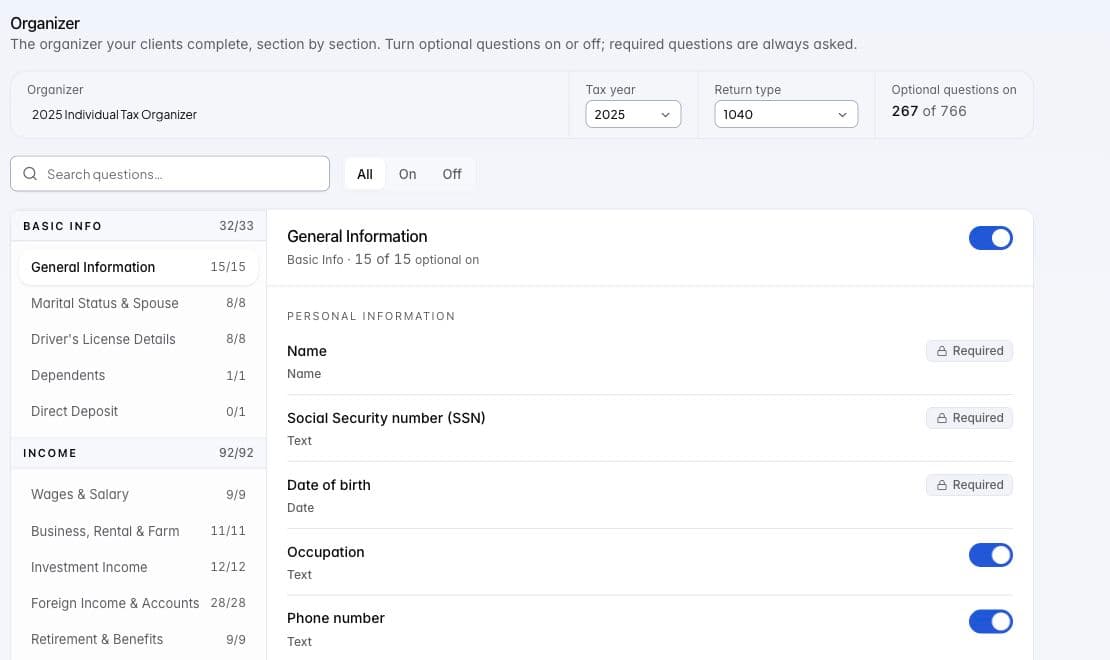
Organizer settings in Tax staging, showing question configuration rather than client answers.
Find and change questions
Use Search organizer questions to find a question, then filter by All, On, or Off. Select a category on the left to read its questions on the right.
Turn an optional question on or off with its switch. The category switch changes all optional questions in that category together. Changes save automatically; if a save fails, the previous choice returns and the page shows an error.
Rows marked Required cannot be disabled. Preparer only identifies questions intended for the firm. Shown when explains when a conditional question appears, and Options shows the answers offered for a choice question.
Rename the organizer
Edit Organizer name and leave the field, or press Enter, to save. Press Escape while editing to return to the saved name. Use Reset beside a custom name to restore the default name.
Continue
Use Document naming and requests for the documents you ask clients to upload. Manage a particular client’s organizer questions in Collect.