Import prior-year returns
Use Connect → Import returns to upload prior-year returns exported from CCH Axcess. Assure Tax reads the files, then asks you to confirm the client and target tax year before applying prior-year information.
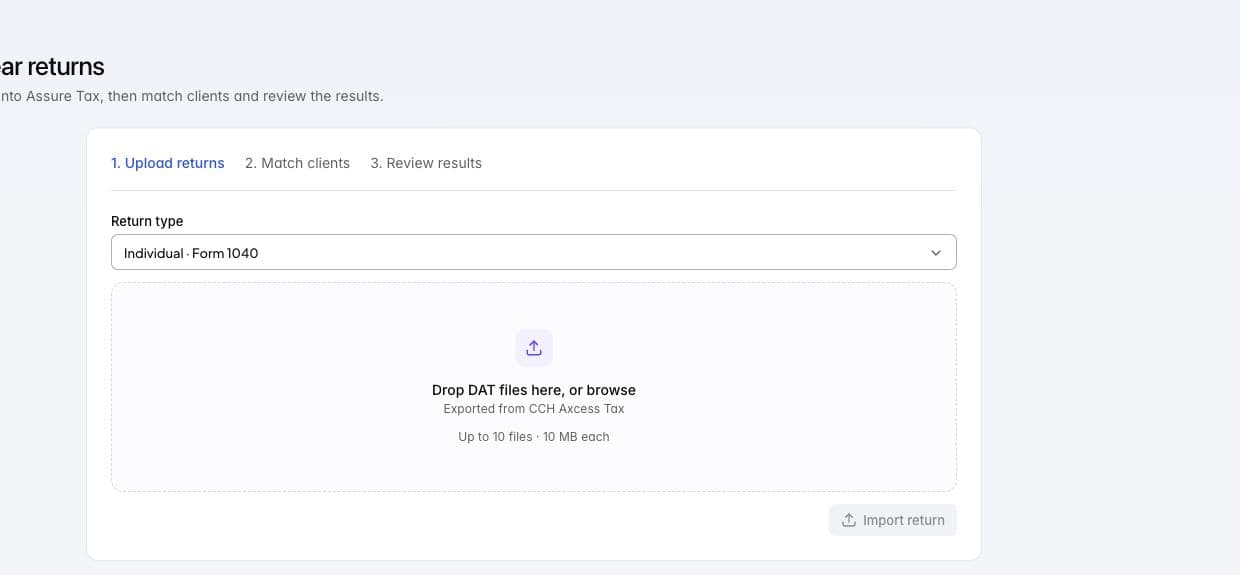
The import screen accepts CCH Axcess DAT files before client matching.
Prepare the files
Use CCH Axcess DAT exports. Each file must be nonempty and no larger than 10 MB. One upload batch holds up to 10 files.
The upload currently offers Individual · Form 1040. A DAT file can contain more than one client return, so the number of imported returns can exceed the number of uploaded files.
Keep the source tax year distinct from the organizer year you intend to prepare. For example, a 2024 prior-year return can provide information for a 2025 organizer; the confirmation step determines the target year.
Upload a batch
- Open Connect.
- Click Import returns.
- Drop the DAT files in Drop DAT files here, or browse.
- Review the queued files and any rejection messages.
- Click Import return or Import with the displayed return count.
- Keep the tab open while the files import.
- Open Continue to client matching when returns need assignment.
Use Add files to add to the current batch. Remove a file before starting if it should not be included. A duplicate selection, empty file, wrong file type, oversize file, or full batch produces a reason beside the upload flow.
Imports run one file at a time. Closing the tab stops the remaining browser batch; files already imported remain in history.
Read the outcome
| Result | Meaning |
|---|---|
| Imported | The file produced one or more import records. Client confirmation may still be needed. |
| Already on file | The file was imported before. Opening it shows the existing run. |
| Failed | The file did not import. Read its reason before retrying. |
The final summary counts imported and already-on-file client returns separately from failed files. Do not treat the number of selected files as the number of newly imported clients.
Use Retry with the failed count to retry unsuccessful files. Use Start another batch after finishing the current set.
Confirm where the data belongs
Uploading does not finish the import workflow. Match imported returns asks for a client and target tax year. A name or Social Security number mismatch needs attention before assignment.
Follow matching and reviewing imported returns to complete the import. If you need to revisit a run, open Transfer history → Imports and choose Open import.
If the upload action is missing
Your role must allow creating imports. Access to Connect or import history alone does not grant upload access. Ask your firm administrator for import creation permission; a team member with client-confirmation access can complete matching after the files arrive.