Create delivery packages
Start with a finished return PDF exported from your tax software. Add it through Upload returns, or choose a finished return that is already in a client’s binder.
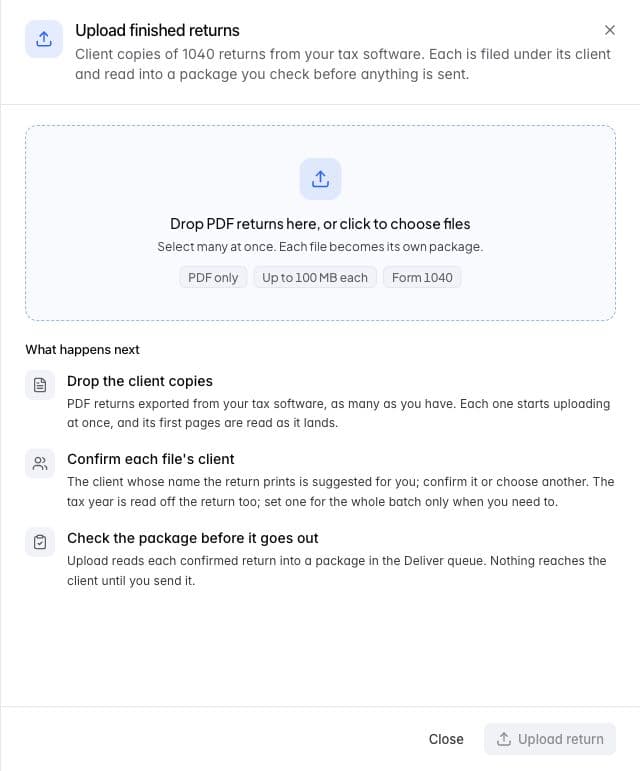
Start with a finished PDF, then confirm its client and return details.
Upload finished returns
- Open Deliver.
- Click Upload returns.
- Drop the files into Drop PDF returns here, or click to choose files.
- Confirm the Client on each row.
- Check Tax year, Return type, and the optional Engagement.
- Click Upload return or Upload with the displayed return count.
- Open Open package when the package is available.
Choose nonempty PDFs no larger than 100 MB each. You can select multiple files; each becomes its own package. Add more returns adds files to the list.
Files begin uploading and their first pages are checked as they arrive. You still need to confirm the client before the return is prepared under that client. Keep the page open while files are uploading: files that have not uploaded are lost from the list if you leave.
Confirm the client and return details
Assure Tax can suggest a client from the return or filename. Click Use beside a suggestion after checking it. Use the suggested client or Use with the suggestion count accepts the available suggestions together; review the resulting assignments.
Use Choose a client to pick a different record. If the client does not exist, Create in Assure Pro opens the client creation control. Enter Client name, choose Entity type, and click Create client. This creates a client in your firm’s Assure Pro list.
The upload reads the tax year and return type when it can. Correct them on the row if necessary. Tax year for every file and Return type for every file apply a choice across the batch. Accepted year entries range from 2000 through 2100. The return-type picker offers 1040, 1065, 1120, 1120S, 1041, and 990; the reader’s findings still determine what was recognized from each PDF.
Treat Confirm client and Check tax year as work to finish. If the printed name, year, or type disagrees with your selection, resolve the warning before sending the eventual package.
Prepare a return already in a binder
- Click From a client’s binder in Deliver.
- Search with Search by file name if needed.
- Select the finished return or returns.
- Click Prepare or Prepare with the selection count.
- Open the resulting packages from the queue.
Prepared files carry a Prepared badge. Internal documents are not offered as client deliverables. A file not in the picker needs to be added to the appropriate binder before using this route.
Follow upload and reading progress
The list distinguishes Uploading, Opening, Being read, and completed reading outcomes. The summary counts ready files, files needing a client, files still uploading, and failures separately.
Once a package is queued for reading, it proceeds in the background. Its package page shows whether it is waiting or actively being read. Return to the queue while it works.
If a row says Already a package, inspect the existing package instead of treating the upload as a new delivery. A file associated with a different client must use that client, or be removed and uploaded again under the correct one.
Recover a failed upload or read
Use the row’s Try again after resolving the named problem. If your Assure Pro session ended, reopen Assure Tax from Assure Pro before retrying. A document-store refusal, unavailable client list, or failed upload needs resolution before a package can be prepared.
A failed or stalled read opens a dedicated explanation. Use Read it again to retry or Replace the file when the source needs correction. View-only access cannot start that work.
After the package is read, review its findings and final checklist. No client receives it until you send it.