Document naming and requests
Open Settings → Documents to set naming preferences and the standard document checklist. Naming controls affect how documents are presented; requested-document controls determine what your firm asks clients to provide.
Choose how names are built
Set Name order to Who it is from, then the form, Form, then who it is from, or Who it is from only. Turn on Include the tax year when the year should appear in names.
Add a first name to tell two apart distinguishes documents on a joint return. It applies to the joint-return naming case, rather than adding a first name to every document.
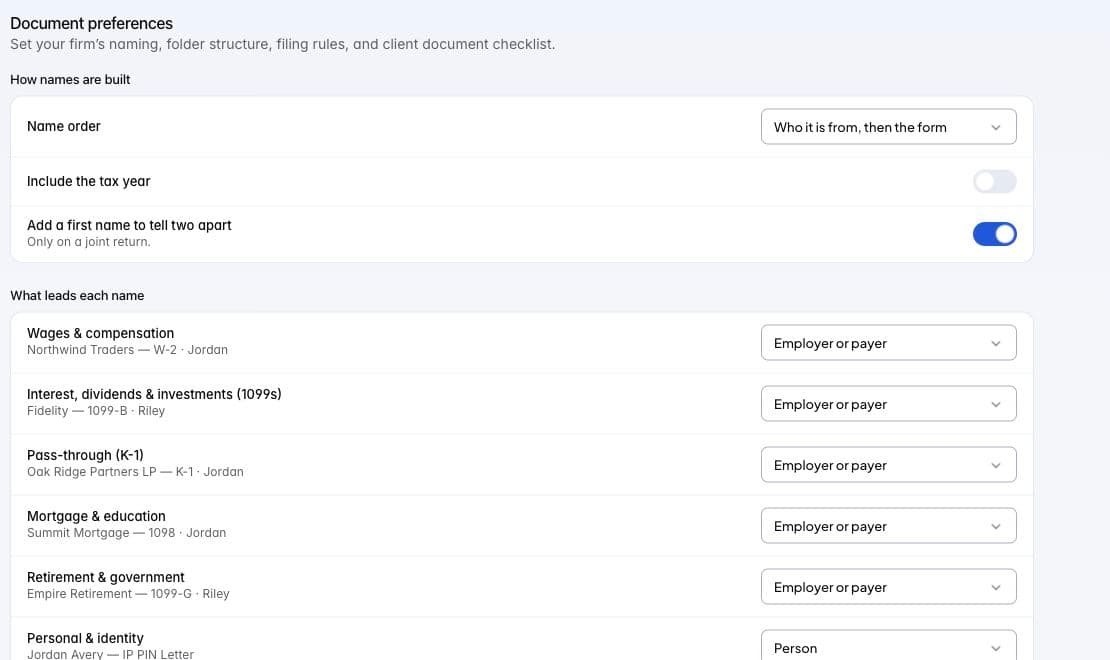
Document naming preferences in Tax staging. Names in the previews are examples supplied by the product.
Choose what leads each name
Under What leads each name, choose Employer or payer, Person, Account number, or Form only for each category. Read the example beside the category to see the result.
Use Exceptions to give a particular document type its own naming choice. Follow the category again removes that exception. Reset all restores the naming defaults when available.
Set the requested documents
- Choose Return type for document settings.
- Find Documents requested.
- Review Standard, the documents requested of clients using that return type.
- Use Add a document… to add another type.
- Remove a document chip to stop requesting that type by default.
Additional requests appear under Added by your firm. Reset to defaults restores the standard selection. The checklist saves as you edit it.
If a checklist save is uncertain, use Retry checklist save or Reload saved checklist as shown. Resolve the save before changing return type; the last displayed choice is not proof that the change was saved.
Continue
Set Binder folders and routing to organize incoming documents. Use Building the checklist for a particular client’s requests.